Mastering Color Accuracy: The Definitive Guide to Calibrating Your Monitor on Windows 11
In the modern digital landscape, the screen you look at serves as your primary window into the world of creative work, entertainment, and professional communication. Whether you are a dedicated graphic designer, a professional video editor, a passionate photographer, or simply a power user who cares about the fidelity of the images you consume, the color accuracy of your monitor is paramount. By default, most monitors are shipped with factory settings that prioritize brightness and “pop” over actual color precision, often leading to oversaturated blues or crushed blacks that hide critical details in your work. Achieving true-to-life color is not just a luxury; it is a fundamental requirement for anyone who wants their digital output to match their artistic intent, ensuring that the vibrant sunset you edited on your workstation looks exactly the same when viewed on a client’s device or printed on high-quality paper.
Windows 11 provides a built-in suite of tools designed to help you navigate the complex process of monitor calibration without necessarily needing to invest in expensive hardware colorimeters right out of the gate. While professional-grade calibration tools are undoubtedly superior for high-end color grading, the native Windows Color Calibration tool offers a robust starting point that can significantly improve your viewing experience by adjusting gamma, brightness, contrast, and color balance. This guide will walk you through the entire process, from preparing your environment to fine-tuning the individual color channels, ensuring that your display is optimized for your specific workspace lighting and visual preferences. By the end of this tutorial, you will have a deep understanding of how your operating system interprets color data and how you can manipulate your hardware settings to achieve the most accurate representation possible.
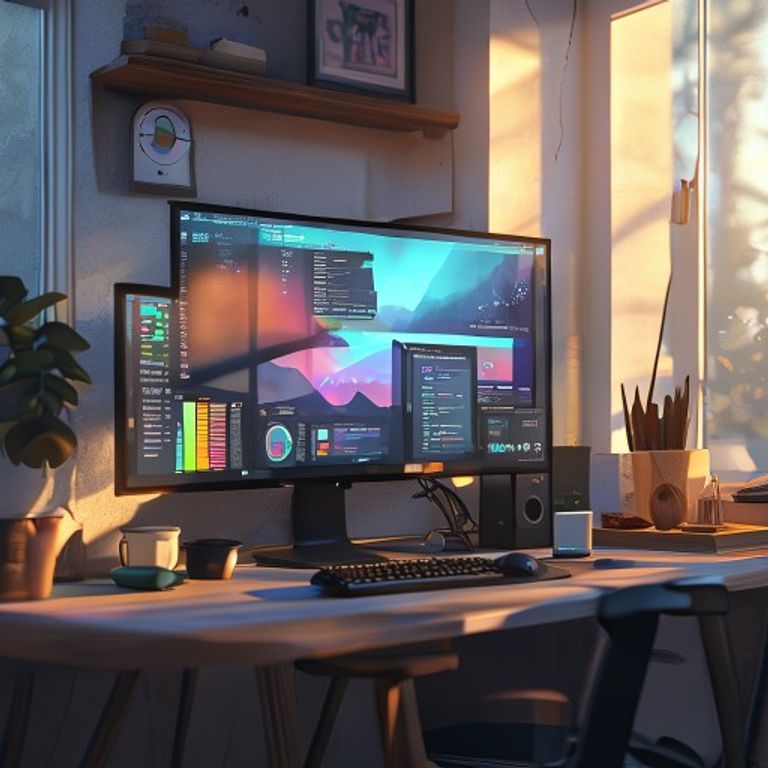
Before diving into the technical steps, it is essential to understand why calibration is necessary in the first place. Monitors use different panel technologies—such as IPS, VA, and TN—each with inherent color characteristics that can shift over time due to hardware aging, backlight degradation, and ambient light changes in your room. Furthermore, Windows 11 handles color profiles through the Windows Color Management system, which acts as a bridge between your graphics card and your display panel. If these profiles are misaligned, you might experience “banding” in gradients, where smooth color transitions appear as jagged, distinct lines, or you might find that your whites look slightly tinted with yellow or blue. Calibration corrects these discrepancies by creating a custom ICC (International Color Consortium) profile that instructs your graphics card to compensate for the panel’s weaknesses, effectively “remapping” the color output to reach a standardized baseline.
Step-by-Step Guide: Calibrating Your Monitor in Windows 11
The following steps are designed to be performed in a controlled environment. Before you begin, ensure your monitor has been turned on for at least 30 minutes. This “warm-up” period is crucial because cold liquid crystal displays (LCDs) or LED-backlit panels change their color temperature as the internal components reach their operating temperature. If you calibrate while the monitor is cold, your settings will likely be incorrect once the monitor settles into its typical operating state.
Step 1: Preparing Your Workspace and Display Settings
The first step in any professional calibration process begins outside of the software. You must ensure your environment is conducive to color accuracy. If your room is flooded with direct sunlight, your eyes will naturally adjust to that light, making it difficult to perceive subtle changes in color balance on the screen. Try to calibrate in a room with moderate, consistent lighting. Avoid bright lights reflecting off the screen, as these reflections will distort your perception of black levels and contrast. Next, reset your monitor to its “Factory Default” settings using the physical buttons on the monitor chassis. This ensures that you are starting from a clean slate and that you aren’t fighting against previous, potentially erroneous manual adjustments you might have made in the past.
Step 2: Launching the Windows Color Calibration Tool
Once your workspace is ready, click the Start button on your Windows 11 taskbar and type “Calibrate display color” into the search bar. Select the result that appears. You will be greeted by the Windows Color Calibration wizard. This tool is a legacy utility that remains highly effective for manual adjustment. When the window opens, drag it to the monitor you wish to calibrate. If you have a multi-monitor setup, it is vital that you perform this process for each display individually, as every panel—even those of the exact same model—will have slight manufacturing variances that require unique calibration profiles.
Step 3: Adjusting Gamma, Brightness, and Contrast
Follow the on-screen instructions carefully. The wizard will first guide you through setting the Gamma, which controls the relationship between the red, green, and blue values and the brightness of the screen. You will see an image with a small dot in the center; move the slider until the dot is barely visible within the background. Next, you will move on to Brightness and Contrast. The tool provides specific test patterns that help you distinguish between deep shadows and pure black, as well as highlights and pure white. Your goal is to reach a point where you can see the “X” in the center of the dark gray background without the background itself turning into a light gray. This ensures that you aren’t crushing your shadows (losing detail in dark areas) or blowing out your highlights (losing detail in bright areas).
Step 4: Fine-Tuning Color Balance
This is arguably the most critical step. The wizard will present you with a series of gray bars. Your objective is to ensure that these bars are neutral gray, without any discernible color cast. If the bars appear slightly reddish, greenish, or bluish, use the provided sliders to increase or decrease the intensity of the respective color channels. This step requires a trained eye; look at the bars from a comfortable distance and try to squint slightly to help your brain ignore the overall brightness and focus purely on the color neutrality. If you find yourself struggling, take a break for a few minutes and come back to it; eye fatigue is a real factor when performing manual color adjustments.
Step 5: Saving and Applying Your ICC Profile
Once you are satisfied with the adjustments, the wizard will allow you to compare your “Current calibration” with your “Previous calibration.” This is a crucial moment for evaluation. Toggle between the two views to see if the changes have improved the image quality or if you have inadvertently made the colors look unnatural. If you are happy, click “Finish.” Windows 11 will then save this configuration as an ICC profile and apply it globally. You can verify that the profile is active by navigating to Settings > System > Display > Advanced Display > Color Profile, where you should see your new calibration listed as the active profile.
Reference Data: Understanding Color Standards
When calibrating, it helps to know what targets you are aiming for. Different industries rely on different color gamuts. Below is a summary of common color spaces that you may encounter in your display settings.
| Color Space | Primary Use Case | Characteristics |
|---|---|---|
| sRGB | Web, Office, General Media | Standard for internet content; limited gamut. |
| Adobe RGB | Professional Print, Photography | Wider gamut, especially in greens and cyans. |
| DCI-P3 | Cinema, High-end HDR Video | Designed for digital movie projection; very vibrant. |
| Rec. 709 | HD Television Broadcasting | The industry standard for HDTV and most streaming. |
Furthermore, understanding the relationship between color temperature and your environment is key to a successful calibration. Most users prefer a target of 6500K (D65), which mimics daylight. If you find your screen looks too orange, your temperature is likely too low; if it looks too blue, it is too high.
| Color Temperature | Visual Perception | Best Environment |
|---|---|---|
| 5000K | Warm/Yellowish | Print proofing environments |
| 6500K | Neutral/Daylight | General work and web design |
| 9300K | Cool/Bluish | Bright office/retail spaces |
Tips and Best Practices for Maintaining Color Accuracy
Calibration is not a “set it and forget it” task. Because monitors drift over time, it is recommended to re-calibrate your display at least once every three to six months. If you are working in a professional capacity, you might want to do this monthly. Additionally, be mindful of the “Night Light” feature in Windows 11. While this feature is excellent for reducing eye strain in the evening by limiting blue light, it effectively overrides your calibration profile. If you are doing color-sensitive work, ensure that Night Light is disabled, as it will introduce a warm color cast that will make accurate color judgment impossible.
Another best practice is to invest in a hardware colorimeter if you find that manual calibration isn’t yielding the results you need. Devices like the Datacolor Spyder or X-Rite i1Display are industry standards. These devices hang over your screen and read the actual light output, removing the subjective element of human perception entirely. They communicate with software to create highly precise ICC profiles that go far beyond what the human eye can achieve manually. While they represent an investment, they pay for themselves in the form of consistent work quality and reduced frustration during the post-production process.
Finally, consider the role of your graphics card control panel. Whether you are using NVIDIA, AMD, or Intel graphics, these drivers often have their own color management settings. It is generally recommended to keep these settings at “Default” or “Application Controlled” while relying on the Windows ICC profile for your calibration. Having conflicting settings in your driver and your OS can lead to unpredictable behavior, such as colors shifting when you open certain applications or games. Keep your workflow simple: let the OS handle the profile, and let the monitor hardware handle the raw signal processing.
Frequently Asked Questions (FAQ)
1. Why do my colors look different on my phone compared to my monitor?
This is often due to differences in color gamut and calibration. Most smartphones use highly saturated OLED panels that target the DCI-P3 color space, whereas many desktop monitors are calibrated for sRGB. Additionally, mobile devices often have “adaptive” color modes that change based on ambient light, which your desktop monitor may not be doing.
2. Does Windows 11 HDR affect my calibration?
Yes, significantly. When HDR (High Dynamic Range) is enabled, Windows takes over the display management to provide a much wider range of brightness and color. Manual ICC profiles created in SDR mode often do not apply correctly to HDR content. If you are doing color-critical work, it is usually best to calibrate for SDR and disable HDR unless you are specifically grading HDR content.
3. Can I use an ICC profile I downloaded from the internet?
While you can download ICC profiles for specific monitor models from manufacturer websites or forums, they are rarely as good as a profile created on your specific unit. Because of manufacturing tolerances, an ICC profile meant for a “generic” version of your monitor might actually make your colors worse. Use downloaded profiles only as a last resort if you cannot perform a calibration yourself.
4. How do I know if my monitor is “good enough” for calibration?
Check the specifications of your monitor. If it covers at least 99% of the sRGB color space, it is capable of good color accuracy. If your monitor is a low-end office panel with limited color coverage (e.g., 60-70% sRGB), no amount of calibration will make it “professional grade.” In that case, calibration will help it look better, but it will never be truly accurate for print or high-end design.
5. What should I do if my colors look worse after calibration?
If the results are poor, you likely made an error during the adjustment phase, such as overcompensating with the color sliders or calibrating in a room with inconsistent lighting. You can always revert to the default state by going to Settings > System > Display > Advanced Display > Color Profile and selecting the default Windows sRGB profile, or by deleting your custom ICC profile from the Color Management control panel.
Conclusion
Calibrating your monitor in Windows 11 is a fundamental skill that bridges the gap between the digital image you see and the reality of your creative projects. By taking the time to understand the nuances of gamma, contrast, and color balance, you empower yourself to make better decisions regarding your work. Whether you are adjusting the white balance for a photography portfolio or ensuring that your video project maintains the correct color grade for a television broadcast, the steps outlined in this guide provide the foundation you need. Remember that accuracy is a journey, not a destination; as your monitor ages and your work requirements evolve, returning to these calibration steps will ensure that your visual output remains sharp, professional, and true to your vision. Embrace the process, trust your eyes, and enjoy the clarity that a properly calibrated display brings to your daily computing experience.
